안녕하세요 여러분. 평범한 컴과생입니다.
저번 시간에는 modal에 대해서 포스팅을 했는데요.
오늘은 prompt에 대해서 정리하고자 합니다.
사실 둘은 비슷하게 생겨서 처음에 좀 헷갈렸는데요.
modal은 주로 콘텐츠를 표시하는 데 사용이 되고요.
prompt는 사용자에게 알림을 주거나
시스템 관련 문제/ 업데이트를 알려줍니다.
주로 flow 또는 trigger 와 합쳐져서 사용될 수 있겠죠?
저는 예시로 trigger에서 이메일이 올바른 형식으로
나오지 않았을 때의 코드를 작성해 보겠습니다.
import { LightningElement, track } from 'lwc';

export default class EmailPrompt extends LightningElement {
    @track email = '';
    @track isPromptOpen = false;

    // 이메일 입력 처리
    handleEmailChange(event) {
        this.email = event.target.value;
    }

    // 제출 버튼 클릭 시 처리
    handleSubmit() {
        if (!this.validateEmail(this.email)) {
            this.openPrompt();
        } else {
            // 유효한 이메일 처리 로직 (예: 서버로 전송, 레코드 생성 등)
            // 여기서는 간단히 알림으로 처리
            this.showToast('Success', '이메일이 유효합니다.', 'success');
        }
    }

    // 이메일 유효성 검사 함수
    validateEmail(email) {
        // 간단한 정규 표현식 사용
        const regex = /^(([^<>()\[\]\\.,;:\s@"]+(\.[^<>()\[\]\\.,;:\s@"]+)*)|(".+"))@(([^<>()[\]\.,;:\s@"]+\.)+[^<>()[\]\.,;:\s@"]{2,})$/i;
        return regex.test(email);
    }

    // Prompt 열기
    openPrompt() {
        this.isPromptOpen = true;
    }

    // Prompt 닫기
    handleClosePrompt() {
        this.isPromptOpen = false;
    }

    // 토스트 메시지 표시 (선택 사항)
    showToast(title, message, variant) {
        const event = new ShowToastEvent({
            title,
            message,
            variant,
        });
        this.dispatchEvent(event);
    }
}
이런 식으로 유효성 검사를 했을 때 특정 상황에서 openPrompt가
실행되도록 지정해 두었습니다.
그렇다면 prompt 디자인은 어떻게 설정해야 할까요?
<template>
    <lightning-card title="이메일 유효성 검사" icon-name="custom:custom63">
        <div class="slds-p-around_medium">
            <lightning-input
                label="이메일 주소"
                type="email"
                value={email}
                onchange={handleEmailChange}
                required>
            </lightning-input>
            <lightning-button
                label="제출"
                variant="brand"
                onclick={handleSubmit}
                class="slds-m-top_medium">
            </lightning-button>
        </div>

        <!-- Prompt 창 -->
        <template if:true={isPromptOpen}>
            <div class="slds-modal slds-fade-in-open slds-modal_prompt" role="dialog" tabindex="-1" aria-modal="true" aria-labelledby="prompt-heading-id" aria-describedby="prompt-message-wrapper">
                <div class="slds-modal__container">
                    <!-- 헤더 -->
                    <header class="slds-modal__header slds-theme_error slds-theme_alert-texture">
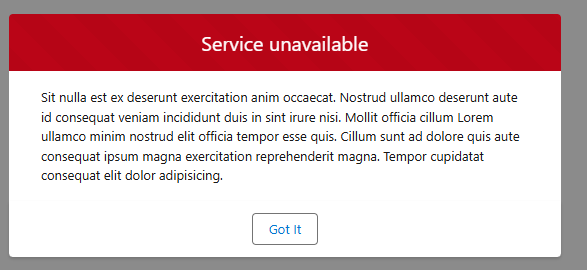
                        <h2 class="slds-text-heading_medium" id="prompt-heading-id">Service unavailable</h2>
                    </header>

                    <!-- 내용 -->
                    <div class="slds-modal__content slds-p-around_medium" id="prompt-message-wrapper">
                        <p>{errorMessage}</p>
                    </div>

                    <!-- 푸터 -->
                    <footer class="slds-modal__footer slds-theme_default">
                        <lightning-button label="Got It" onclick={handleClosePrompt} class="slds-button_neutral"></lightning-button>
                    </footer>
                </div>
            </div>
            <div class="slds-backdrop slds-backdrop_open" role="presentation"></div>
        </template>
    </lightning-card>
</template>
이렇게 보면 좀 거대할 수 있지만
본질은 요정도입니다.
<div class="demo-only" style="height:24rem">
<section role="dialog" tabindex="0" aria-modal="true" aria-labelledby="prompt-heading-id" aria-describedby="prompt-message-wrapper" class="slds-modal slds-fade-in-open slds-modal_prompt">
<div class="slds-modal__container">
<div class="slds-modal__header slds-theme_error slds-theme_alert-texture">
<h1 class="slds-text-heading_medium" id="prompt-heading-id">Service unavailable</h1>
</div>
<div class="slds-modal__content slds-p-around_medium" id="prompt-message-wrapper">
<p>Sit nulla est ex deserunt exercitation anim occaecat. Nostrud ullamco deserunt aute id consequat veniam incididunt duis in sint irure nisi. Mollit officia cillum Lorem ullamco minim nostrud elit officia tempor esse quis. Cillum sunt ad dolore
quis aute consequat ipsum magna exercitation reprehenderit magna. Tempor cupidatat consequat elit dolor adipisicing.</p>
</div>
<div class="slds-modal__footer slds-theme_default">
<button class="slds-button slds-button_neutral">Got It</button>
</div>
</div>
</section>
<div class="slds-backdrop slds-backdrop_open" role="presentation"></div>
</div>
참고하셔서 prompt 창 잘 설정하세요!
'공부 기록 > Salesforce' 카테고리의 다른 글
| 2024 Seoul Dreamin 후기 (1) | 2024.10.25 |
|---|---|
| 2024 Seoul Dreamin 정리 (0) | 2024.10.25 |
| salesforce modal (0) | 2024.10.09 |
| visualforce page 추가하는 법 (1) | 2024.10.08 |
| org 새로 만드는 방법 & 언어 바꾸는 방법 (1) | 2024.10.01 |